
Dashboard-Struktur
Ein genauerer Blick auf jeden Bereich in der Referenta-Seitenleiste, was Sie dort finden und wobei er Sie unterstützt.
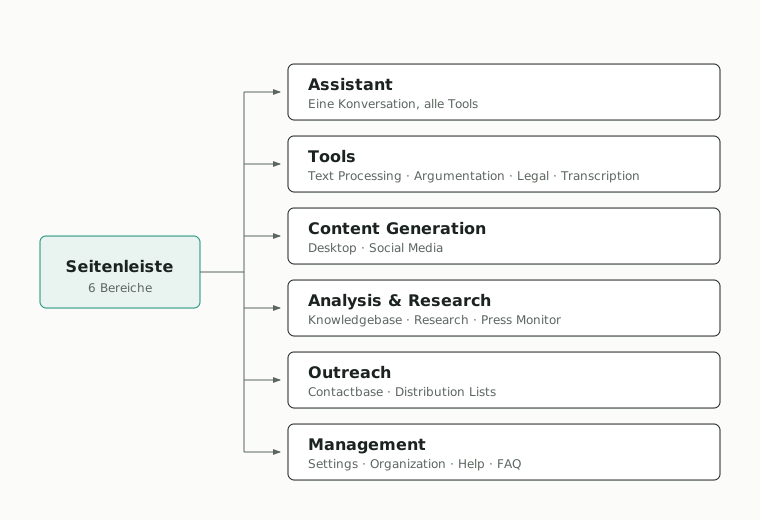
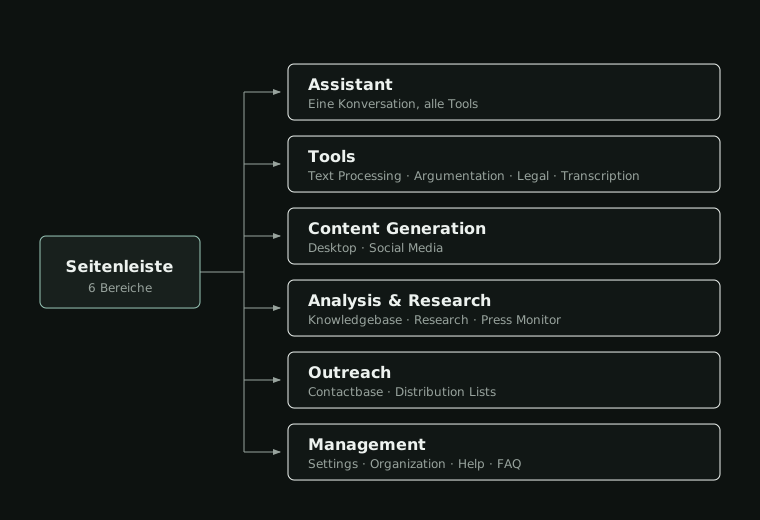
Die Seitenleiste gliedert Referenta in sechs Bereiche. Diese Seite geht jeden einzelnen durch, damit Sie wissen, was hinter den Namen steckt. Manche Arbeitsbereiche sehen zusätzlich einen Kalender-Bereich neben Assistant und einen EU-Frühwarnsystem-Bereich innerhalb von Analysis & Research.
Assistant
Was es ist: Ihr KI-Gesprächspartner. Mehr als eine gewöhnliche Chat-KI: Der Assistant kann das Web durchsuchen, Dateien lesen, die Sie hochladen, parlamentarische Dokumente nachschlagen, Ihre Research-Arbeitsbereiche durchsuchen und Aussagen überprüfen. Sie müssen das Tool nicht selbst auswählen. Der Assistant entscheidet anhand Ihrer Frage. Siehe Tools the Assistant Can Use.
Wofür er da ist: Alles, was vom Hin und Her profitiert (eine Pressemitteilung entwerfen, ein schwieriges Argument durchdenken, "fasse das für mich zusammen" oder einen von jemand anderem geschriebenen Absatz verbessern), sowie Aufgaben, die externe Informationen erfordern (eine Drucksache finden, ein Zitat prüfen, ein angehängtes PDF zusammenfassen).
Wie es in der Praxis funktioniert: Wenn Sie Assistant öffnen, landen Sie direkt in einer Konversation. Sie können tagelang in derselben Konversation weiterarbeiten; alles, was Sie gesagt haben, und alle Dateien, die Sie hinzugefügt haben, bleiben verfügbar. Wenn Sie eine klar andere Aufgabe beginnen, öffnen Sie eine neue Konversation, damit die KI nicht von älterem Kontext durcheinandergebracht wird.
Wenn Sie ChatGPT genutzt haben, wird Ihnen das vertraut vorkommen. Es ist auf politische und fachpolitische Arbeit abgestimmt und kann Material aus anderen Bereichen von Referenta sowie aus dem Live-Web heranziehen.
Tools
Was es ist: Eine Reihe fokussierter Arbeitsbereiche, jeder gebaut für eine bestimmte Art Aufgabe.
Wofür sie da sind: Aufgaben, bei denen Sie bereits wissen, wie das Ergebnis aussehen soll, zum Beispiel "bereinigen Sie dieses Transkript", "vergleichen Sie diese beiden Gesetzestexte", "transkribieren Sie diese Aufnahme".
Warum sie vom Assistant getrennt sind: Der Assistant ist flexibel, aber leer. Sie müssen beschreiben, was Sie wollen. Ein Tool ist das Gegenteil: Der Arbeitsbereich ist bereits auf eine Aufgabe zugeschnitten, sodass weniger Entscheidungen zu treffen sind. In einem Tool sind Sie schneller, wann immer die Aufgabe wiederkehrend ist oder eine klare Eingabe und Ausgabe hat.
Der Tools-Bereich umfasst derzeit Text Processing, Argumentation & Analysis, Legal Documents und Transcription. Siehe Tools, um zu erfahren, was jedes davon leistet.
Content Generation (Inhaltserstellung)
Was es ist: Der Ort, an dem Sie schriftliche und visuelle Inhalte erstellen. Zwei Arbeitsbereiche befinden sich hier:
- Desktop — ein Dokumenteneditor für längere Texte: Reden, Pressemitteilungen, Blogartikel. Wählen Sie einen Typ, durchlaufen Sie eine kurze Einrichtung und schreiben und bearbeiten Sie den generierten Entwurf anschließend in einem Vollbild-Editor mit automatischem Speichern.
- Social Media — Captions für die gewählte Plattform sowie passende Kacheln und Grafiken.
Wofür er da ist: Eine Rede oder Pressemitteilung von Grund auf entwerfen, einen Presseartikel in einen Post verwandeln, eine Social-Kampagne aus eigenen Notizen entwerfen, Post-Grafiken mit einem visuellen Editor im Canva-Stil bauen, der Vorlagen, Ebenen, Schriften und Bild-Upload unterstützt.
Wie es in der Praxis funktioniert: Social Media hat zwei Modi: Caption-Modus für den Textteil eines Posts und den Tile & Graphic Editor für die visuelle Hälfte. Sie können sie gemeinsam oder unabhängig voneinander nutzen. Alles, was Sie speichern, landet in einer Saved-Outputs-Bibliothek zur Wiederverwendung.
Ein gängiges Muster: Einen Artikel im Press Monitor finden, auf Send to Social Media klicken, eine Caption für die gewünschte Plattform generieren und eine passende Kachel über den Tile Editor erstellen. Siehe Social Media.
Analysis & Research
Was es ist: Die Recherche-Hälfte von Referenta. Drei Arbeitsbereiche befinden sich hier:
- Knowledgebase — eine durchsuchbare Bibliothek mit parlamentarischen Dokumenten (Drucksachen) und Grundsatzpapieren. Nutzen Sie Smart Search, um Dokumente in verständlicher Sprache zu finden, oder schlagen Sie eine Drucksache nach Nummer nach.
- Research — ein Arbeitsbereich für eine laufende Untersuchung. Nutzen Sie ihn, wenn Sie Material zu einer bestimmten Fragestellung über längere Zeit sammeln und sichten. Der Assistant kann auch in Ihren Research-Arbeitsbereichen suchen.
- Press Monitor — eine Live-Ansicht der Medienberichterstattung mit Feed, Filter-Seitenleiste, schnellem Ticker für Eilmeldungen, Trend- und Sentiment-Signalen, Audio-Briefings und PDF-Analyseberichten.
Wofür er da ist: Alles, bei dem die Antwort von Belegen abhängt: das richtige Dokument finden, sichten, was die Presse sagt, Quellenmaterial sammeln, bevor Sie schreiben.
Eine gute Faustregel: Wenn Ihre Aufgabe mit "finden", "was wird gesagt zu" oder "vergleichen mit vorhandenem Material" beginnt, starten Sie hier.
Outreach
Was es ist: Ihr Knotenpunkt für Kontakte und Kommunikation.
Contactbase ist der Ort, an dem Ihre Kontaktdaten liegen: Journalistinnen und Journalisten, Stakeholder, Partner, alle, mit denen Sie kommunizieren. Sie können suchen und filtern, um genau die Personen aufzurufen, die Sie brauchen.
Distribution Lists setzen auf Contactbase auf. Es sind gespeicherte Empfängergruppen, damit Sie nicht jedes Mal dieselbe Zielgruppe neu zusammenstellen müssen, wenn Sie etwas versenden.
Wofür er da ist: Alles, was mit "und dann verschicken an" endet. Presseverteiler, Stakeholder-Updates, Partner-Briefings.
Management (Verwaltung)
Was es ist: Hier liegen Einstellungen auf Kontoebene, nicht die Arbeitsaufgaben. Alle sehen Settings (Einstellungen); Administratorinnen, Administratoren und Verwalter sehen zusätzlich Organization (Organisation). Help (Hilfe) und FAQ öffnen externe Seiten für Support und Dokumentation.
Hierher kommen Sie, um:
- ein Teammitglied einzuladen oder Zugriff zu entfernen (Organization, nur Administratorinnen, Administratoren und Verwalter),
- Ihre eigenen Konto- und Anwendungseinstellungen zu konfigurieren (Settings),
- Support zu erreichen oder die FAQ zu durchsuchen.
Tägliche Nutzer verwenden vor allem Settings. Administratorinnen und Administratoren sowie Verwalter nutzen Organization beim Onboarding, bei der Fehlersuche oder beim Anpassen der Teamkonfiguration.
Eine weitere Faustregel
Wenn Sie nicht sicher sind, wo Sie beginnen sollen, fragen Sie sich, welches Verb die Aufgabe am besten beschreibt:
- Entwerfen, schreiben, fragen, erkunden, überprüfen -> Assistant
- Verarbeiten, vergleichen, transkribieren -> Tools
- Posten, betexten, gestalten -> Content Generation
- Finden, beobachten, sammeln -> Analysis & Research
- Senden, gruppieren, kontaktieren -> Outreach
- Einladen, konfigurieren, Einstellungen aktualisieren -> Management
Damit lässt sich fast jede Aufgabe einem Startpunkt zuordnen. Und falls Sie weiterhin unsicher sind, fragen Sie den Assistant, wo Sie hingehen sollen: Er verweist Sie mit einem klickbaren Link auf den richtigen Arbeitsbereich.